Open Office: Using Page Styles to Create Unique Headers
A lady on a mailing list I’m on asked if it was possible to have secondary header that was not used on the first page. In Microsoft Word you can use section breaks to divide page sets. Each section break can then have it’s own header and footer text. If you remove a section break, the header and footer are removed.
You create unique headers and footers in one document in Open Office Writer by using the page styles available in OOWriter. Page styles in Open Office Writer are like creating master pages in InDesign: page features (text, graphics, etc.) are stored in the style. When a page style is active on a page, the style name is highlighted in the Page Styles pane of the Styles and Formatting palette.
Header and footer text associated with a particular style is entered on a page tagged with that style.
The procedure below describes how to create new page styles, apply the page styles, and then modify the headers and footers associated with each page style. You can also use this procedure with existing page styles by starting after after the first section.
Creating New Page Styles
- Open or create a multi-page document.
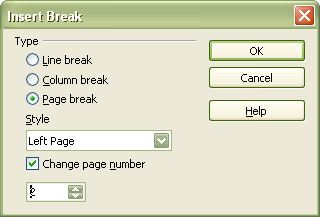
Tip: To add new pages, use the Manual Break option from the Insert menu. By using this method, you can also change the page number and choose the style for the new page. - Choose Format > Styles and Formatting to display the Styles and Formatting palette.
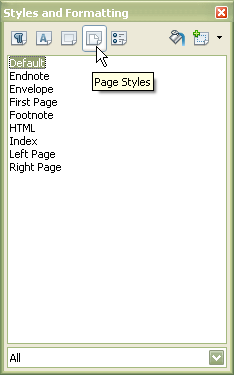
- Click the fourth icon in the palette’s toolbar to display the Page Styles palette. You will use this palette to create, modify, and remove pages styles from this document.
- Place your cursor on the first page of the document.
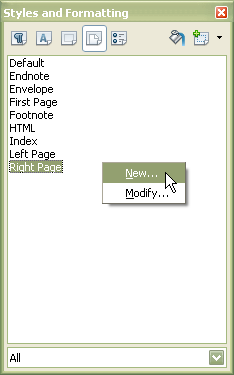
- In the Page Styles palette, right-click in the dialog and choose New… from the pop-up menu.
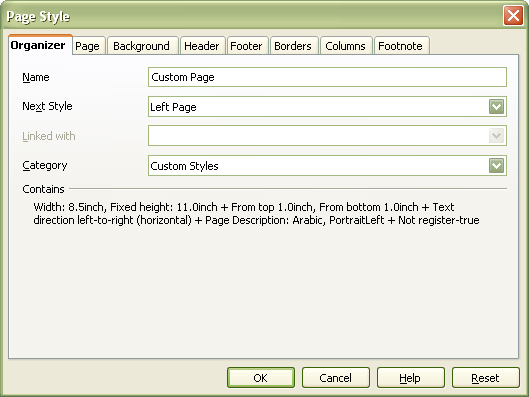
- On the Page Style dialog, choose the options for the page style and save changes by pressing OK. On the Header and Footer tab, make sure the options are turned on. (Text for the headers and footers is not entered in this dialog.)
Tip: You may or may not want headers or footers active on the first page of a document. - Repeat the above steps for however many pages styles your document requires.
Adjusting Page Style Flow: Next Style
Let’s say that you want to automatically have these running headers appear on left- and right-facing pages (except for the title page):
- The left-facing page header (defined in the Left Page style) will have the document title and
- The right-facing page header (defined in the Right Page style) will display the page number.
Open Office Writer lets you define the next style that follows a particular style. In this example, the Left Page style would be modified using the Page Style dialog so the Right Page style is chosen as the Next Style.
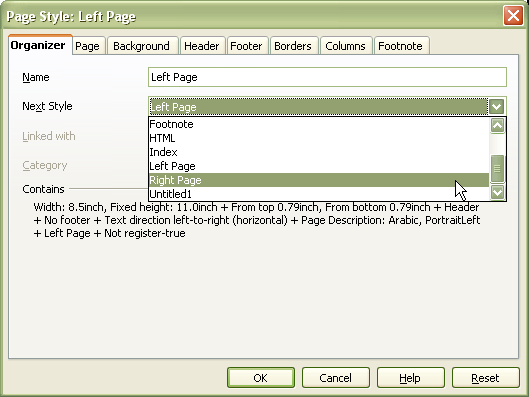
The Right Page style would also have to be changed so the Next Style drop-down box has Left Page chosen.
Applying Page Styles
- With your cursor on your first page, double-click on the name of the style you would like to apply to the first page.
- If the style has a header turned on, enter content in the header. Once you set a page style on one page, OOWriter automatically applies that same page to each subsequent page that does not have a style assigned.
- Go to the next page in the document. Place your cursor on the page test. On the Page Styles palette, double-click the name of the next page style you wish to use.
- If headers are turned on, the header at the top of the page will be blank. Enter a new header for this page and possibly the next if you are using left-right facing pages with different header/footer content.
- Check the pages in the document. Later pages in the document should have the second page style you created. The first page should still contain the first page header contents. If it does not, return to the Page Styles palette and double-click the name of the first page style you created. The header content will reappear.
You should now be able to place your cursor on a page and apply any of the pages styles to individual pages.
These instructions were written using Open Office Writer 2.3 in X-Windows on the Mac. The steps were also checked in OOWriter 2.4 for Microsoft Windows.
Additional Resources
- Starting Page Numbering on Page 2, and Other Ways to Mix Page Styles in a Document
- Using landscape and portrait pages
- Page numbering
- Combining OpenOffice.org text documents using master files
Trouble? Suggestions?
If you have any trouble with this tutorial, please leave a comment. I’m happy to update the document.
Edit on October 10, 2008. Updates from comments found on the Open Office Writer forums.
Hi
Thank You!
This is exactly what I needed and it’s solved my problem!!
I was going a bit crazy following the forum threads & you were a ray of light!
Thx
B
I am very glad that the procedure helped!
Thank you for your comment. It made my day. 🙂
Ceffyl
Nice work done. I have been searching for this since three days and lost hope. But you made my day.
Thanks for the work.
MOJO
You are most welcome 🙂 Very glad it helped. Knowing something I wrote helped someone always makes my day!
I have another doubt regarding this. If i save this document created with different headers in odt format it works fine. But after that if i try to save it in rtf format then comes the real problem. The headers are moving somewhere and not in the way i saved. Can you help me regarding this.
Thanks in advance,
Mojo
Hi, Mojo.
If you save a word processing document in a non-native format, the new file may not contain all of the capabilities of the native file format. For example, if you save a Microsoft Word document as an RTF, you won’t retain some of the formatting features available in the docx format. The same holds true for saving an Open Office Writer file (native file ODT) as an RTF.
Does the RTF file have to be edited? Are you saving the file in a new format in order to share it? If so, would a PDF file work as an option?
Hi Ceffyl,
Yes, the RTF file have to be edited. I need to enter some data which comes in an array format into an RTF file. PDF can’t be an option for my current work. I retrieve data from database and then write some code which works as an input for the RTF. I don’t write it directly. All the data for the RTF is retrieved from the backend and written directly.
Mojo